Opening Google Search Console and seeing a security warning can be alarming.
The wrong response is to assume every warning means Google has manually penalized your website.
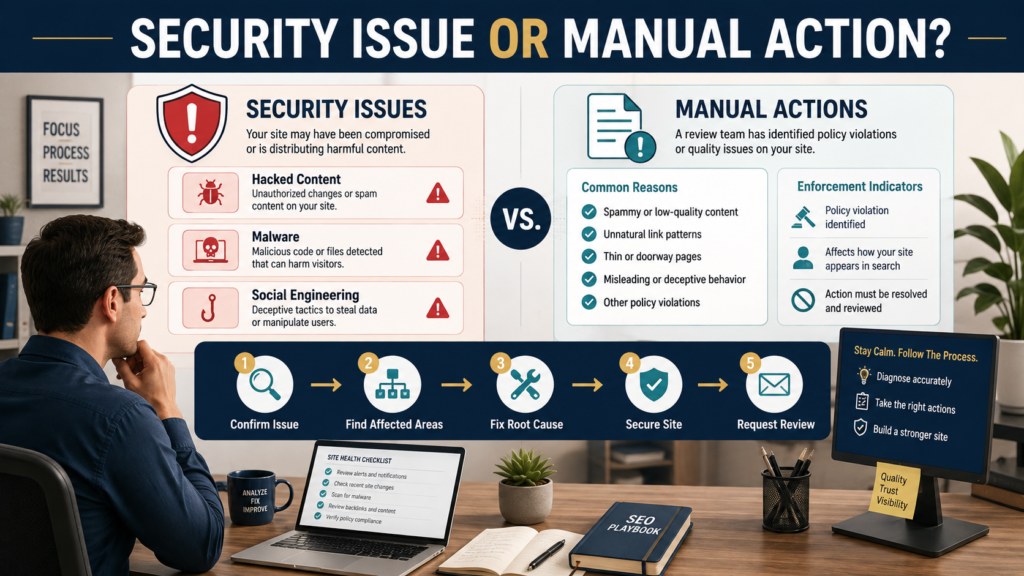
Google provides separate reporting for Security Issues and Manual Actions, and the two reports address different types of problems.
The Security Issues report is used when Google detects indications that a site may be hacked or may contain behavior that could harm visitors, including certain forms of malware, unwanted software, or social engineering. Google’s official documentation also makes clear that the listed example URLs may not represent every affected page.
The practical workflow is:
Confirm what Google reported → understand the security category → investigate the entire site → fix the root cause → secure the site → request a review when appropriate.
Do not treat the warning as an ordinary ranking fluctuation.
Security Issues and Manual Actions Are Not the Same
This distinction should be understood first.
Security Issues
These concern potentially harmful website behavior or compromised content.
Examples may include:
- Hacked content.
- Malware.
- Unwanted software.
- Deceptive pages.
- Social engineering or phishing behavior.
Google may display warnings to users when a site appears dangerous.
Manual Actions
Manual actions relate to Google Search policies and can occur when a human reviewer determines that pages or a site violate spam-related policies.
If you are trying to determine whether you actually have that type of problem, use my separate guide to the Search Console Manual Actions report.
Do not use the terms interchangeably.
Start With the Actual Report
Open Search Console and read the security issue as reported.
Do not begin by searching social media for speculation about:
- Algorithm updates.
- Ranking penalties.
- Negative SEO.
- Competitor attacks.
The report should tell you the category Google identified and may show example affected URLs.
Google’s official Security Issues documentation is the appropriate primary reference for the categories and review process. Google Search Console Security Issues documentation
Example URLs Are Not Necessarily the Full Problem
This is a critical point.
If Search Console shows three example hacked pages, do not assume repairing those three URLs solves the issue.
Google says the affected URLs displayed can be examples rather than a complete list.
A compromised site may contain:
- Injected pages.
- Hidden redirects.
- Modified templates.
- Malicious JavaScript.
- Spam directories.
- Unauthorized administrator accounts.
- Server-level compromise.
- Database injections.
You need to find the cause, not simply remove the examples.
Step 1: Confirm Whether the Site Is Compromised
Check:
- Recent administrator accounts.
- Unexpected plugins.
- Theme modifications.
- New files.
- Server logs.
- Hosting security alerts.
- Database changes.
- Redirect behavior.
- Unfamiliar pages indexed by Google.
- Unexpected scripts.
If you do not have the technical experience to investigate safely, involve your hosting provider or a qualified security professional.
A security incident is not the right place to guess.
Step 2: Take the Site Seriously Before Thinking About SEO
When users could be exposed to harmful content, rankings are not the first priority.
The order should be:
Protect visitors → stop the compromise → remove malicious content → close the vulnerability → restore trustworthy pages → request review.
Trying to improve title tags while malicious code remains on the site misses the real problem.
Step 3: Find the Root Cause
Deleting injected pages is not enough if the attacker can recreate them.
Common causes can include:
- Vulnerable plugins.
- Outdated themes.
- Stolen administrator credentials.
- Weak passwords.
- Compromised hosting accounts.
- Exposed software.
- Insecure custom code.
The exact cause varies.
Your job is to understand how unauthorized changes occurred and close that route.
Step 4: Clean the Entire Website
Depending on the incident, cleanup can involve:
- Removing malicious files.
- Restoring known-clean files.
- Removing unauthorized accounts.
- Updating WordPress core.
- Updating plugins and themes.
- Replacing compromised software.
- Resetting relevant credentials.
- Checking database content.
- Reviewing redirects.
- Checking external scripts.
Keep backups before making major changes, but do not blindly restore a backup unless you know it predates the compromise and the vulnerability has been corrected.
Step 5: Secure the Site After Cleanup
After removing the harmful content:
- Change administrative passwords.
- Update software.
- Remove unused plugins and themes.
- Review administrator permissions.
- Enable available security protections.
- Review hosting access.
- Check file permissions.
- Update compromised credentials.
- Consider multi-factor authentication where supported.
Otherwise you may clean the symptom while leaving the door open.
What Does HTTPS Have to Do With This?
HTTPS is important, but an HTTPS certificate does not guarantee that a site is free of malware.
A compromised HTTPS website can still serve malicious content.
If Search Console is showing HTTPS-specific indexing problems rather than security warnings, use the separate Search Console HTTPS report troubleshooting process.
Security and HTTPS overlap in the broader concept of safe website operation, but they are not interchangeable reports.
Step 6: Test the Cleanup
Before requesting a review, verify that the site is actually clean.
Check:
- Example URLs.
- Similar URL patterns.
- Mobile and desktop behavior.
- Logged-in and logged-out experiences.
- Unexpected redirects.
- Source code.
- Server files.
- Database content.
- Administrator accounts.
Do not request review simply because you deleted the example URLs.
Step 7: Request Review When Appropriate
Google’s documentation provides a review process after security problems have been fixed. The site should be repaired comprehensively before that request is submitted.
A review request is not:
“I do not think this warning is fair.”
It should follow actual remediation.
Document internally:
- What was compromised.
- What was removed.
- What vulnerability was fixed.
- What security changes were implemented.
That documentation is useful whether or not every detail is submitted to Google.
Do Not Confuse Indexing With Security Recovery
You may be tempted to use URL Inspection immediately after cleanup.
URL Inspection can help you evaluate individual URLs, but submitting individual URLs for recrawling is not a substitute for resolving a site security problem.
For page-level indexing diagnostics, see how to use the Search Console URL Inspection tool to troubleshoot one page.
Fix the security problem first.
What If Search Traffic Dropped?
A serious security warning can affect user trust and search visibility.
But do not assume every traffic drop means a security incident.
If there is no Security Issues warning and no evidence of compromise, follow a broader diagnostic workflow such as how to diagnose a drop in Google Search traffic before changing your website.
Use the report that matches the evidence.
Security Issues vs Manual Actions Checklist
Security Issues
Ask:
- Did Google identify harmful or compromised behavior?
- Are example URLs shown?
- Is the site hacked?
- Is malware involved?
- Is deceptive content present?
- Could visitors be at risk?
Manual Actions
Ask:
- Does the Manual Actions report list an action?
- What policy is cited?
- Is the action sitewide or partial?
- What spam-policy problem must be corrected?
The solution depends on which report actually contains the warning.
What Not to Do
Do Not Delete the Entire Website Immediately
Preserve evidence and backups so the problem can be investigated.
Do Not Fix Only One Sample URL
Look for the larger pattern.
Do Not Submit Repeated Review Requests Without Fixing the Cause
The underlying security issue needs remediation.
Do Not Assume HTTPS Means Safe
Encryption and compromise are separate concerns.
Do Not Focus on Rankings Before Visitors
Security comes first.
Do Not Install Random “Fix” Plugins During a Compromise
Additional unverified software can complicate diagnosis.
Create a Small Security Response Record
Record:
Date detected:
[Date]
Security issue:
[Reported category]
Sample URLs:
[Examples]
Root cause:
[When known]
Cleanup actions:
[Actions]
Credentials changed:
[Yes/No]
Software updated:
[Details]
Review requested:
[Date]
Resolved:
[Date]
This makes future incidents easier to understand and prevents relying on memory.
Conclusion
The Search Console Security Issues report should be treated as a website-security warning, not as another name for a manual action.
Read the exact issue Google reports, investigate beyond the sample URLs, identify the root cause, clean the full compromise, strengthen security, test the fix, and request a review only after remediation is complete.
Most importantly, put visitor safety ahead of search rankings.
When Search Console identifies a genuine security issue, the priority is restoring a trustworthy website—not finding a quick SEO workaround.