Google Search Console contains reports designed for entire websites.
The URL Inspection tool is different.
It answers a much narrower question:
What does Google know about this exact URL?
Google’s current documentation identifies three common uses:
- Troubleshooting why a specific page is not on Google.
- Confirming that an indexing problem was fixed.
- Requesting indexing for an individual page.
That makes URL Inspection especially useful when you are looking at one important page and thinking:
Why isn’t this page indexed?
The key is learning the difference between:
Google’s indexed information
and
the live page test.
Start With the Exact URL
Open Search Console and enter the full URL in the inspection bar.
Example:
Do not inspect:
http://example.com/guide/
if the actual canonical page is HTTPS.
Google treats URLs as specific resources.
Small variations matter.
Read the Top Verdict First
Current URL Inspection verdicts can include:
URL Is on Google
The page is indexed according to Google’s current stored information.
URL Is on Google, but Has Issues
The page is indexed, but Search Console found an issue involving an enhancement or other reported feature.
URL Is Not on Google
The page is not currently indexed under that inspected URL, and the Page Indexing section should provide additional information.
Do not stop at the headline.
Expand the details.
“URL Is on Google” Does Not Guarantee Traffic
Google explicitly warns that an “URL is on Google” verdict does not guarantee that the URL will actually appear for searches. URL Inspection does not test every condition that affects whether a page is served in Search.
Indexed does not mean:
- Ranked highly.
- Receiving impressions.
- Receiving clicks.
- Guaranteed to appear for your preferred keyword.
Indexing is one prerequisite.
Check the Last Crawl Date
The indexed view tells you when Google last crawled the page.
This is extremely useful.
Suppose you changed the article yesterday.
URL Inspection shows:
Last crawl: three weeks ago
Then Google’s indexed information may not reflect your new version yet.
That does not necessarily mean something is broken.
It means Google has not processed the updated page.
Understand the Two Views
Google says URL Inspection contains information from two sources:
Google Index View
What Google’s stored indexing system currently knows about the page.
Live Test
What Google can access from the URL at the moment you run the test.
Google also notes that live-test results are not as comprehensive as the indexed information and are not themselves used as Search index data.
This distinction solves many misunderstandings.
Example
Indexed Version
Shows:
URL is not on Google because indexing was blocked.
You recently removed the noindex.
Live Test
Shows:
Indexing allowed: Yes.
That is good evidence that your change is live.
But it does not mean Google’s index has already updated.
The live test tells you:
Google can see the corrected version now.
Then you can request indexing if appropriate.
Check Crawl Allowed
URL Inspection reports whether Google is allowed to crawl the page.
If:
Crawl allowed? No
investigate robots.txt.
A page that Google cannot crawl will generally have difficulty entering or refreshing in the index.
Do not request indexing repeatedly while a crawl block still exists.
Fix the block first.
Check Page Fetch
The tool also reports whether Google could fetch the page.
Possible problems include:
-
- Server errors.
- Access failures.
Google’s documentation notes that page fetch is one of the key signals to inspect when a URL is not on Google.
If Google cannot load the page, an indexing request is not the solution.
Fix availability.
Check “Indexing Allowed?”
This tells you whether the page itself instructs Google not to index it.
A common reason:
noindex
If you intentionally noindexed:
- Thank-you page.
- Private utility page.
- Internal search result.
the result may be correct.
If it is an important article, product page, or category page that should appear in Search, investigate where the noindex directive came from.
Check the Canonical
Google may see several similar URLs.
URL Inspection can show:
User-declared canonical
and
Google-selected canonical
when applicable.
If you inspect Page A but Google chose Page B as canonical, Page A may not be indexed independently.
That may be completely correct.
Do not automatically attempt to force every duplicate URL into Search.
When Google’s Canonical Choice Surprises You
Investigate:
- Canonical tags.
- Redirects.
- Internal links.
- Sitemap URLs.
- Duplicate content.
- URL parameters.
Your site may be sending conflicting signals.
The Live Test Does Not Fully Test Duplicate Selection
Google explains that canonical/duplicate processing relies on information from the actual index and is not fully reproduced by the live test.
So:
Live page is available
does not mean:
Google will definitely select this URL as canonical.
Do not overinterpret the live test.
Use Test Live URL After Fixing Something
Suppose Search Console reports:
Indexing allowed: No
You fix your SEO plugin settings.
Instead of waiting days to find out whether the page changed, click:
Test Live URL
Now you can confirm whether Google can access the corrected current version.
Google explicitly recommends testing the live URL after fixing an indexing issue and then requesting indexing if the problem has been resolved.
When to Request Indexing
Request indexing when:
- You published an important new page.
- You made an important correction.
- You fixed a technical indexing problem.
- Google has not yet discovered an important page.
Do not request indexing every time you change:
- One comma.
- One sentence.
- An image caption.
- Minor formatting.
Google normally recrawls sites automatically.
Requesting Indexing Is Not a Guarantee
Google explicitly states that requesting a crawl:
- Does not guarantee immediate inclusion.
- Does not guarantee inclusion at all.
- Can take from days to weeks.
- Has quotas.
- Does not become faster if you repeatedly request the same URL.
This is one of the most important URL Inspection lessons.
Do not click Request Indexing 15 times.
URL Inspection Is Not for Bulk Submissions
Google says individual URL requests are for a small number of URLs.
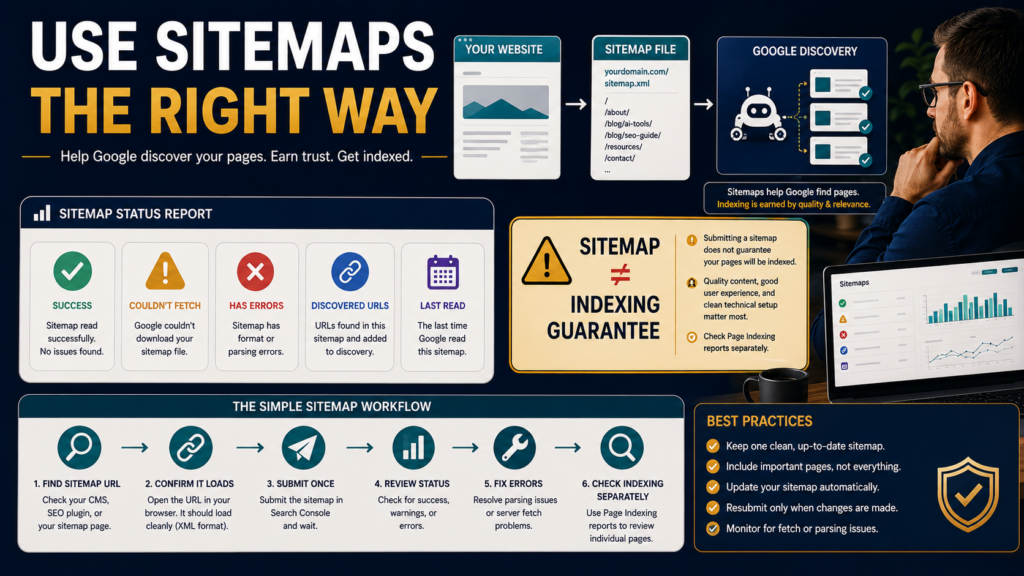
For many URLs, use normal site discovery and a sitemap.
If you publish 200 articles, do not manually request every one as a permanent publishing workflow.
URL Inspection vs. Page Indexing Report
Use:
Page Indexing Report
When you want to see sitewide indexing patterns.
URL Inspection
When you want to diagnose one URL.
Your Page Indexing analysis may tell you:
25 pages are Crawled — Currently Not Indexed.
Then URL Inspection helps investigate representative individual URLs.
Check Structured Data
If Google detected supported structured data, URL Inspection may display relevant enhancement information.
A page can be indexed while still having a structured-data problem.
That is why Search Console may say:
URL is on Google, but has issues.
The page itself may still appear as a normal result.
Check HTTPS
Current URL Inspection reporting can also surface HTTPS-related information where applicable.
Again, separate:
Indexing status
from
enhancement or experience issue.
Not every warning means the page disappeared from Search.
Use the Correct Troubleshooting Sequence
When a page is not indexed:
1. Inspect URL
Read current indexed status.
2. Check Crawl Allowed
Fix robots blocking if unintended.
3. Check Page Fetch
Fix server/404 problems.
4. Check Indexing Allowed
Remove accidental noindex.
5. Check Canonical
Determine whether Google is selecting another URL intentionally.
6. Test Live URL
Confirm fixes are available now.
7. Request Indexing
Only after fixing the underlying issue.
This sequence prevents meaningless submission requests.
Do Not Diagnose Search Traffic With URL Inspection Alone
Suppose an article is indexed but lost 70% of its clicks.
URL Inspection may show everything is technically fine.
That does not explain:
- Query demand.
- Ranking changes.
- CTR.
- Competition.
- Seasonality.
Use LeeOneMedia’s broader guide to diagnosing a drop in Google Search traffic before changing your website for those situations.
Internal Links Still Matter
If Google has never found an important page, ask how users and crawlers are supposed to discover it.
Useful internal links help connect content.
LeeOneMedia’s guide to using internal links for SEO without stuffing links into every paragraph covers that discovery and context layer.
A Practical URL Inspection Log
When troubleshooting a high-value page, record:
URL
Inspection Date
Indexed?
Last Crawl
Crawl Allowed
Fetch
Indexing Allowed
Google Canonical
Live Test
Action
Review Date
This can be helpful when technical issues take several days to resolve.
Example
URL: /email-guide/
Indexed: No
Reason: Noindex detected
Action: SEO setting corrected
Live Test: Indexing allowed
Request Indexing: Yes
Review: One week
Now you have evidence instead of memory.
Do Not Confuse Indexing With Ranking
The tool can help you answer:
Can Google index this page?
It cannot answer:
Why am I number 14 for this keyword?
Use Performance data for search visibility questions.
URL Inspection is primarily technical page-level diagnostics.
Conclusion
Search Console’s URL Inspection tool is one of the most useful technical SEO tools when you have a problem with one specific page.
Use it to understand:
- What Google currently knows.
- When Google last crawled the page.
- Whether crawling is allowed.
- Whether the page can be fetched.
- Whether indexing is allowed.
- Which canonical Google selected.
- Whether a live fix is visible.
Then request indexing only after the page is actually ready.
The best workflow is not:
Request Indexing → hope.
It is:
Inspect → diagnose → fix → test live → request indexing when appropriate → recheck.