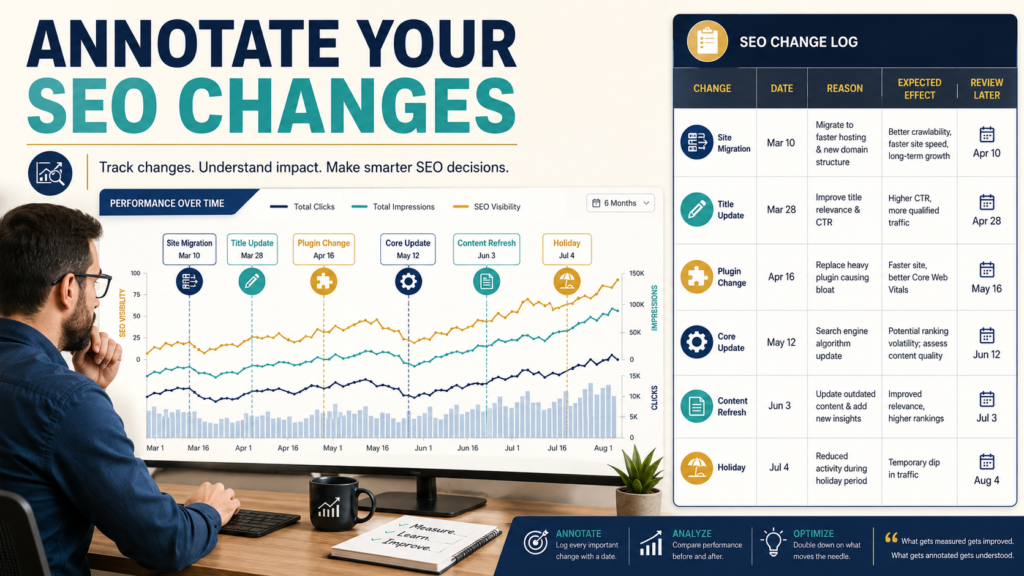
One of the most frustrating parts of SEO analysis is remembering what happened.
Traffic changes in March.
You think:
Did I rewrite the page title in February?
Or:
Was that when I installed the new SEO plugin?
Or:
Did the traffic drop begin before or after the site migration?
Without a record, you are forced to reconstruct history.
Google introduced custom annotations in Search Console Performance reports in November 2025 specifically to address this problem. Annotations let property users place a dated note directly on a performance chart. Google currently allows annotation text up to 120 characters, and annotations are visible to everyone who has access to that Search Console property.
Google’s official custom-annotations announcement describes the feature as a way to add context to Search performance data.
That makes annotations one of the simplest tools available for creating an SEO change log.
What Is a Search Console Annotation?
An annotation is a dated note attached to the Performance chart.
Examples:
Aug 18 — Updated article title
Aug 20 — Site migration completed
Aug 22 — Fixed noindex error
Aug 25 — Added internal links
Sept 1 — Holiday promotion began
When you later review the chart, the event appears in context.
Instead of relying on memory, you have a record.
How to Add an Annotation
Google’s current instructions are straightforward:
- Open the relevant Search Console Performance report.
- Find the date on the performance chart.
- Right-click the chart.
- Choose Add annotation.
- Write a note of up to 120 characters.
- Save it.
Use the current interface because labels can change.
What Should You Annotate?
Not every website edit deserves a marker.
Record changes that could plausibly affect how you interpret later data.
Major Content Updates
Example:
Rewrote top half of pricing guide; updated title/H1.
URL Changes
Example:
Redirected /old-guide/ to /new-guide/.
Site Migration
Example:
Migrated hosting provider.
Template Changes
Example:
Changed sitewide article template.
Internal-Linking Changes
Example:
Added contextual links from 12 related articles.
Technical SEO Changes
Example:
Fixed accidental noindex on category.
Plugin or Theme Changes
Example:
Replaced SEO plugin.
External Events
Example:
Major industry announcement increased search demand.
Google itself lists examples including infrastructure changes, SEO efforts, content changes, and external events such as holidays.
Do Not Annotate Every Tiny Edit
If your chart contains 47 markers every week, the feature becomes less useful.
You probably do not need:
Corrected comma.
or:
Changed one image caption.
unless the edit is part of a larger experiment you specifically want to track.
Ask:
Would knowing this date help me explain future performance?
If yes, annotate it.
Create a Consistent Naming System
The 120-character limit encourages concise notes.
Use categories.
CONTENT
CONTENT: Rewrote title + intro on /email-guide/
TECH
TECH: Fixed canonical error on review pages
SITE
SITE: Theme update completed
LINKS
LINKS: Added internal links to SEO cluster
EXTERNAL
EXTERNAL: Seasonal demand begins
Now markers become easier to scan.
Record the Page When Relevant
Weak annotation:
Updated content.
Better:
CONTENT: Updated /email-marketing-guide/ title + comparison table.
Specificity matters.
Six months later, “updated content” will tell you almost nothing.
Record the Change, Not the Desired Outcome
Avoid:
SEO fix that will increase rankings.
You do not know that yet.
Write:
Updated title to better match beginner search intent.
Annotations should preserve facts.
Results come later.
Use Annotations When Investigating Traffic Drops
Suppose organic clicks decline on March 12.
You open the chart and see:
March 10 — Sitewide navigation redesign
That does not prove the redesign caused the decline.
But it gives you a useful hypothesis.
You can investigate:
- Pages affected.
- Queries affected.
- Indexing.
- Internal linking.
- Technical changes.
Without the annotation, you might waste time investigating unrelated explanations.
LeeOneMedia’s guide to diagnosing a drop in Google Search traffic before changing your website provides the broader diagnostic process.
Annotations add context to that investigation.
Annotations Do Not Prove Causation
This is critical.
Imagine:
May 1 — Rewrote title
Clicks increase May 3.
It is tempting to say:
The title change caused the increase.
Maybe.
But other factors could include:
- Search demand.
- Competitor changes.
- Algorithm changes.
- Seasonality.
- New backlinks.
- Normal variation.
The annotation identifies timing.
It does not establish causation.
Record Search Algorithm Events Carefully
You may decide to annotate a confirmed Google Search update.
If you do:
- Use the publicly confirmed date.
- Identify the event accurately.
- Do not invent unofficial algorithm names.
- Do not assume every traffic change came from the update.
Google maintains a Search Status Dashboard for confirmed incidents and ranking-system updates. Use confirmed information when possible.
Everyone With Property Access Can See the Annotation
Google specifically warns that custom annotations are visible to everyone who has access to the Search Console property. It recommends not including sensitive personal information.
Do not write:
- Customer information.
- Passwords.
- Private employee details.
- Confidential financial information.
- Sensitive internal notes.
Think of the annotation as shared operational metadata.
Use Annotations for Content Experiments
Suppose an article receives many impressions but weak clicks.
You revise the title.
Add:
CONTENT TEST: New title published on /page/.
Then allow enough time for meaningful data.
Later compare:
- Clicks.
- Impressions.
- CTR.
- Relevant queries.
Do not change the title again two days later unless there is a genuine problem.
Otherwise the experiment becomes impossible to interpret.
Use Annotations for Internal-Linking Projects
Suppose you update a topic cluster.
On August 18:
LINKS: Added 8 contextual internal links to analytics cluster.
Later you can inspect the affected pages.
Again, the marker does not prove the result.
But it tells you when the intervention occurred.
For context on implementing useful links, review LeeOneMedia’s guide to using internal links for SEO without stuffing links into every paragraph.
Combine Annotations With an External Change Log
The Search Console note is deliberately short.
For important changes, maintain a detailed record elsewhere.
Example:
Search Console Annotation
CONTENT: Major refresh of /ga4-blog-performance/
Detailed Change Log
- Date.
- URL.
- Old title.
- New title.
- Sections added.
- Sections removed.
- Internal links changed.
- Source updates.
- Reason.
- Expected outcome.
The annotation points to the event.
The external log explains it.
Why This Helps When Multiple People Work on the Website
Suppose one person:
- Publishes articles.
Another:
- Handles technical maintenance.
Another:
- Updates SEO.
Without shared records, a traffic change can become a mystery.
Because Search Console annotations are visible to users with property access, they can provide a basic shared timeline.
You still need sensible internal documentation.
Use a Standard Annotation Checklist
Before adding an annotation, ask:
What changed?
Which page or site section?
What date?
Is the event significant enough to affect analysis?
Can the note be understood six months later?
Does it contain sensitive information?
If it passes, add it.
Example Annotation Timeline
August 18
CONTENT: Updated comparison table on /email-tools/
August 22
TECH: Fixed sitemap submission issue
August 25
LINKS: Added internal links to 6 related guides
September 1
EXTERNAL: Labor Day seasonal period
Now future data has context.
Use It During Monthly SEO Reviews
At the beginning of each month:
- Open the last 30–90 days.
- Review major traffic changes.
- Look at annotations.
- Examine affected pages.
- Compare relevant queries.
- Determine whether additional investigation is needed.
- Record conclusions.
This turns annotations into a real analysis system instead of decorative chart markers.
Compare With GA4 When Appropriate
Search Console measures Google Search performance.
GA4 measures website behavior through its own analytics system.
The numbers will not match perfectly because the platforms use different definitions and measurement methods. Google’s official documentation explains that Search Console clicks and Google Analytics sessions are calculated differently.
If a Search change appears significant, you may examine what happened after visitors arrived.
LeeOneMedia’s guide to measuring blog performance in GA4 without relying on page views alone can help with that second layer of analysis.
Do Not Use Annotations to Rewrite History
Record changes when they happen.
You can sometimes add historical annotations if you know the exact event and date, but avoid filling the chart with guesses.
Bad:
“Probably changed plugin around here.”
Better:
Check documentation, email, deployment records, or WordPress history first.
Annotations should increase confidence, not create fictional certainty.
A Simple SEO Change-Log Template
Date:
August 18, 2026
Category:
CONTENT
URL:
[Page]
Change:
Updated title and opening section.
Reason:
Search intent was not clearly addressed.
Search Console Annotation:
CONTENT: Updated title + intro on [page]
Review Date:
September 18, 2026
Result:
To be determined.
That is enough.
Conclusion
Search Console custom annotations solve a simple but important SEO problem:
Remembering what changed and when.
Use annotations for significant content updates, technical changes, migrations, internal-linking projects, external events, and other changes that may help explain future performance.
Keep the notes factual, concise, and free of sensitive information.
Most importantly, remember what annotations do not tell you.
They show timing.
They do not automatically prove cause.
Start by adding annotations for the next three meaningful website changes you make. A few months from now, you may be very glad the dates are no longer dependent on memory.