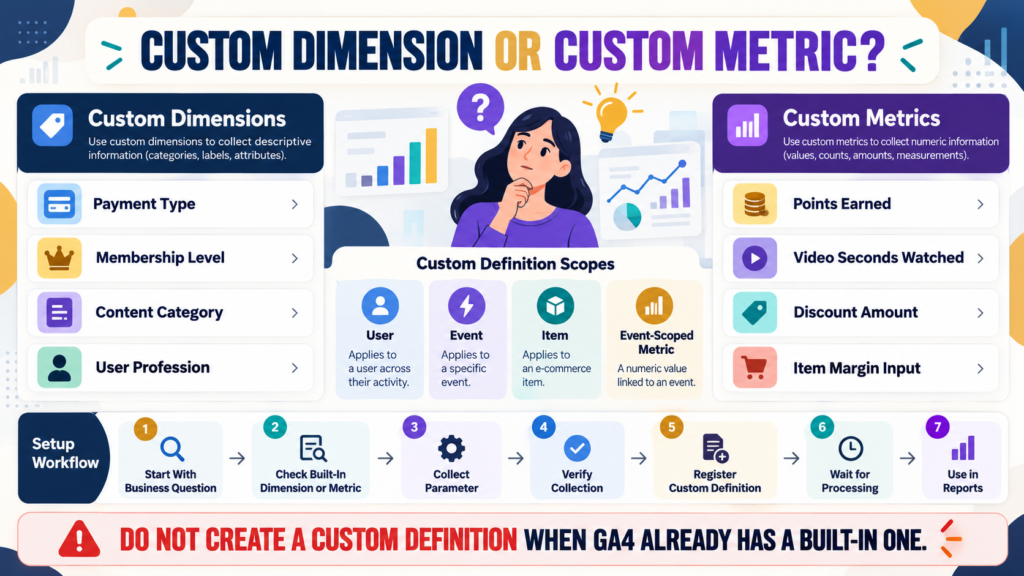
Google Analytics 4 already includes many dimensions and metrics.
Examples:
Dimensions
- Page title.
- Country.
- Device category.
- Session source.
- Event name.
Metrics
- Users.
- Sessions.
- Event count.
- Revenue.
But sometimes your business collects information GA4 does not automatically turn into a normal reporting field.
Examples:
- Membership level.
- Payment type.
- Content category.
- Points earned.
- Video seconds watched.
That is where custom definitions become useful.
The important choice is usually:
Custom Dimension
or:
Custom Metric?
A useful rule is:
Dimension = descriptive category
Metric = numerical quantity
Google’s current documentation follows that distinction: event-scoped custom dimensions are designed for categorical event-parameter information, while custom metrics are designed for quantitative numerical event parameters.
Start With the Business Question
Do not start by asking:
“Which custom definitions can I create?”
Start with:
“What question can I not answer with GA4’s built-in fields?”
Example:
Which membership plan generated the most purchases?
You need a category:
- Starter.
- Plus.
- Premium.
That sounds like a custom dimension.
Another question:
How many reward points were earned?
That is numerical.
A custom metric may be appropriate.
Check Built-In Fields First
Google specifically recommends not creating a custom definition when a predefined dimension or metric already exists.
Why?
Duplicate definitions create:
- Confusing reports.
- Extra maintenance.
- Wasted custom-definition capacity.
Before creating anything:
Search GA4’s existing dimensions and metrics.
What Is a Custom Dimension?
A custom dimension allows GA4 to report categorical information you send as:
- Event parameters.
- User properties.
- Item-scoped parameters.
Google currently supports different custom-dimension scopes including:
User
Event
Item.
The scope determines what the value describes.
User-Scoped Custom Dimensions
Use a user-scoped dimension when the value describes a characteristic of the user.
Google’s example uses a user property such as:
profession
which can then be registered as a user-scoped custom dimension.
Possible business examples:
- Customer type.
- Membership tier.
- Account type.
Only collect data appropriate for your analytics implementation and privacy obligations.
Event-Scoped Custom Dimensions
Use event scope when the information describes a particular event.
Google gives the example of:
payment_type
sent with an add_payment_info event.
That parameter could identify:
- Card.
- Digital wallet.
- Another supported method.
You could then analyze behavior by payment type.
Other examples:
- Button location.
- Content type.
- Form type.
- Video category.
Item-Scoped Custom Dimensions
Item scope is especially relevant for ecommerce.
Google says item-scoped custom dimensions are created from custom parameters inside the items array of ecommerce events such as:
purchaseadd_to_cart.
Examples might include:
- Product author.
- Product collection.
- Custom product classification.
These describe the item rather than the overall event.
What Is a Custom Metric?
A custom metric turns a numerical event parameter into a reportable metric.
Google currently states that custom metrics are always event scoped.
Examples:
- Points earned.
- Seconds consumed.
- Discount amount.
- Custom score.
The value should represent a quantity.
Dimension Example
Suppose an event sends:
membership_plan = gold
Gold is a category.
Use a custom dimension.
Metric Example
Suppose an event sends:
reward_points = 250
250 is a measurable quantity.
Use a custom metric.
Do Not Use a Metric for Categories
Suppose:
Basic = 1
Premium = 2
VIP = 3
Technically those are numbers.
But the numbers represent categories.
Treating them as a metric could produce meaningless analysis such as:
Average membership level = 2.4
That does not represent a useful business quantity.
Use a dimension.
Do Not Use a Dimension for Quantities You Want to Calculate
Suppose you collect:
video_seconds = 120
If registered only as a categorical dimension, reporting treats values more like labels.
If your goal is:
- Sum.
- Average.
- Compare numerical amounts.
a custom metric is more appropriate.
Verify the Parameter Is Being Collected First
Google recommends confirming that your custom parameter or user property is actually being collected before creating the custom definition.
This is important.
Creating a definition does not magically create the underlying data.
The sequence is:
Implement Parameter → Verify Collection → Register Definition
not:
Register Definition → Hope Data Appears
Where Do You Create Them?
Google currently places custom definitions under:
Admin → Data display → Custom definitions.
You generally need:
Editor or Administrator
property-level access to create them.
Processing Is Not Instant
Google says custom dimensions can take approximately 24–48 hours after collection and registration before they become available in supported reporting.
Therefore:
Do not create the definition at 9:00 AM and assume it is broken because a historical report does not populate immediately.
Custom Definitions Are Not Retroactive
A practical implication of GA4 custom definitions is that you should not expect the newly registered reporting field to magically reconstruct all historical parameter reporting from before the definition was created.
Plan custom measurement before you need the report.
Naming Matters
Use a human-readable dimension or metric name.
Example:
Membership Plan
The underlying parameter might be:
membership_plan
The reporting name should help someone understand the field months later.
Document the Parameter
For every custom definition record:
Reporting Name
Parameter Name
Scope
Business Purpose
Implementation Date
Owner
This becomes important as analytics grows.
Custom Metrics Can Feed Calculated Metrics
Google also supports calculated metrics, which combine existing and custom metrics through formulas.
For example:
A business could combine:
- Standard item price.
- Custom cost-of-goods metric.
to create:
Item Margin
when the implementation supports the required data.
That creates a useful distinction:
Custom Metric
Reports a quantitative parameter you collect.
Calculated Metric
Uses one or more existing metrics to calculate a new reporting value.
Be Careful With Custom-Definition Limits
GA4 properties have limits on custom definitions.
For example, Google currently documents that standard properties can register up to 10 item-scoped custom dimensions, while Analytics 360 supports a higher limit.
Do not create custom definitions merely because something might be interesting someday.
Create them for actual business questions.
Archiving Is Irreversible
Google allows unused custom dimensions and metrics to be archived to free capacity.
But Google warns that archiving is permanent and can affect:
- Audiences.
- Explorations.
- Segments.
- Custom reports
that rely on the definition.
Review dependencies before archiving anything.
Example: Lead Magnet Type
You want to know:
Which lead-magnet category produces the most qualified subscribers?
You send:
lead_magnet_type = checklist
Possible values:
- checklist
- ebook
- template
This is categorical.
Create:
Event-Scoped Custom Dimension: Lead Magnet Type
Example: Download Value
Suppose you intentionally send:
download_value = 5
where 5 represents a real quantitative value in your measurement model.
That may be a custom metric.
But make sure the number actually represents something measurable.
Do not turn arbitrary labels into metrics.
Connect Custom Dimensions With Explorations
Google allows custom dimensions to be used in Explorations after they become available.
You can import the dimension and use it in:
- Rows.
- Columns.
- Filters.
This can answer very specific business questions.
Connect Them With Your Existing GA4 Reporting
Your verified GA4 Custom Channel Groups guide deals with custom acquisition classification.
Custom definitions solve a different problem:
Custom channels classify traffic sources.
Custom dimensions and metrics classify or quantify information you intentionally collect.
Do not confuse the two.
A Simple Decision Rule
Ask:
IS THE VALUE DESCRIPTIVE?
Examples:
- Gold.
- Ebook.
- Member.
- Sidebar.
Use a:
CUSTOM DIMENSION
IS THE VALUE A REAL QUANTITY?
Examples:
- 42 points.
- 95 seconds.
- $12 discount.
Use a:
CUSTOM METRIC
Then decide the correct scope.
A Simple Custom Definition Worksheet
Business Question:
Built-In Field Exists?: Yes / No
Parameter:
Example Value:
Category or Quantity?:
Scope: User / Event / Item
Definition Type: Dimension / Metric
Implementation Verified?:
Date Registered:
Report Needed:
Owner:
Conclusion
GA4 custom dimensions and custom metrics let you report on business-specific information that GA4 does not already provide.
Use:
Custom Dimensions
for descriptive categories.
Use:
Custom Metrics
for genuine numerical quantities.
Then choose the appropriate scope and confirm the underlying data is actually being collected.
The safe process is:
Business Question → Check Built-In Fields → Implement Parameter → Verify Collection → Register Custom Definition → Wait for Processing → Analyze
Your Next Action
Write down one analytics question GA4 cannot currently answer for your website.
Then identify the missing value.
Ask:
Is this a category or a quantity?
If category:
Choose a custom dimension.
If quantity:
Evaluate a custom metric.
Before creating anything, search GA4’s existing fields to make sure a built-in definition does not already exist.
Then document:
Parameter Name | Scope | Business Purpose | Owner
Only after the parameter is successfully being collected should you register the custom definition.
That prevents your GA4 property from filling with custom fields that never produce useful data.