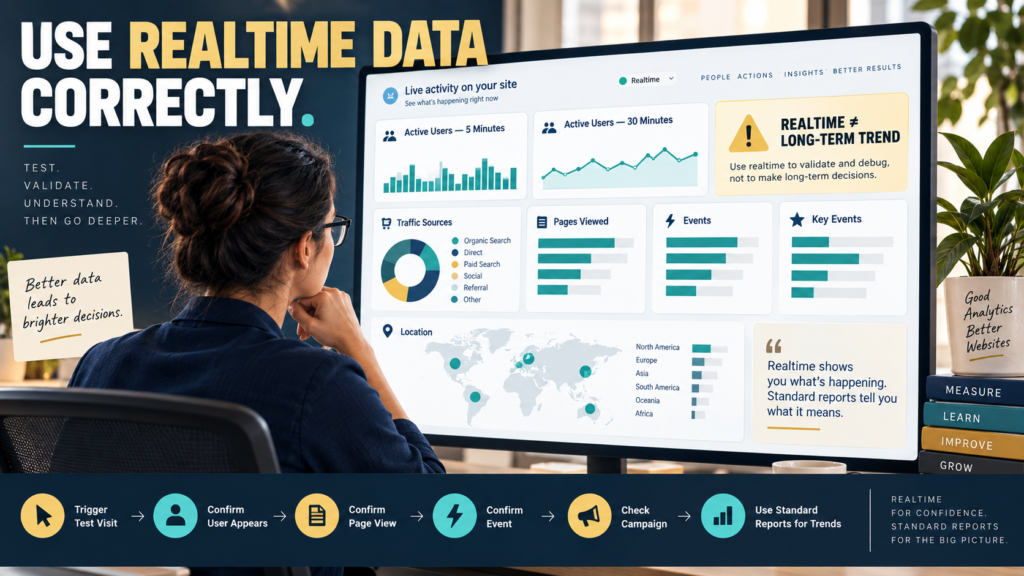
Google Analytics 4 includes a Realtime report that shows activity on your website or app shortly after it occurs.
That makes it extremely useful for questions such as:
- Did my tracking code work?
- Did my test visit appear?
- Is the new page receiving traffic?
- Did the event I configured fire?
- Is today’s promotion sending visitors?
Google’s current documentation says the standard GA4 Realtime report can show active users during the last 5 and 30 minutes, along with information about traffic sources, audiences, pages or screens, events, key events, user properties, and other recent activity.
You can review the current Google Analytics Realtime documentation.
The most important rule is simple:
Realtime is a monitoring and verification tool. It is not a replacement for your normal historical reports.
Where to Find Realtime
Google’s current instructions are:
Google Analytics → Reports → Realtime
If you do not see it, Google notes that reporting navigation can be customized and the report may need to be added back by someone with appropriate permissions.
Once open, you can examine recent activity across several cards.
What Realtime Can Tell You
Current Realtime reporting includes information such as:
- Active users during the last 5 minutes.
- Active users during the last 30 minutes.
- Acquisition information.
- Audiences.
- Page titles or screen names.
- Event counts.
- Key events.
- User properties.
These are excellent signals for answering:
Is something happening right now?
They are much weaker for answering:
Is my marketing strategy working this month?
Use Case 1: Confirm GA4 Is Receiving Data
Suppose you install GA4 on a new website.
Open Realtime.
Then visit the website yourself from another browser or device.
Navigate through several pages.
If the implementation is working, you should normally begin seeing recent activity.
This provides a much faster initial check than waiting for normal reports.
However, do not assume that seeing one active user proves every part of your implementation is correct.
It only tells you that GA4 is receiving at least some data.
Use Case 2: Test a New Page
Suppose you publish a new landing page.
Visit it.
Then check:
Views by page title or screen name
If the expected page appears, you have evidence that the pageview is reaching GA4.
Next test the important interactions.
For example:
- Form start.
- Form submission.
- Button click.
- Purchase.
- Download.
Only test events your measurement setup is actually designed to collect.
Use Case 3: Test an Event
Imagine you configure an event for:
lead_form_submit
Complete the form.
Then examine recent event activity.
Ask:
- Did the event appear?
- Was it named correctly?
- Did it fire once?
- Did something unexpected fire?
If a business-important event is configured as a key event, you can also check whether it appears in the relevant Realtime information.
For a broader explanation of this distinction, see GA4 Events vs Key Events.
Use Case 4: Check a Campaign Immediately
Suppose you send an email at 10:00 a.m.
At 10:05, Realtime may help answer:
Are people arriving?
You could look at recent user acquisition information and pages viewed.
That can help identify obvious issues.
For example:
If you expected immediate traffic but see nothing, investigate:
- Link works.
- Campaign actually sent.
- Landing page loads.
- Tracking works.
But do not conclude at 10:05:
“This campaign failed.”
The campaign may continue generating traffic for hours or days.
Realtime Attribution Has Limits
Google specifically says Realtime performs limited attribution analysis in order to keep reporting responsive and recommends Acquisition reports when you need more accurate acquisition analysis.
That means Realtime is useful for:
“Do I see recent traffic associated with this source?”
It is less appropriate for:
“Which marketing channel generated the most valuable customers this quarter?”
Use the appropriate acquisition reports for that question.
My guide to GA4 User Acquisition vs Traffic Acquisition explains how those standard reports answer different acquisition questions.
Do Not Treat 30 Minutes as a Trend
This is one of the easiest mistakes.
Suppose you normally have a small website.
Realtime suddenly shows ten active users.
That does not automatically mean:
“Traffic is exploding.”
The visitors could come from:
- One email.
- A social post.
- Your own testing.
- A referral.
- A temporary campaign.
Likewise, zero active users does not prove:
“Google stopped sending traffic.”
Realtime covers a very short window.
Trends require longer periods.
Use Standard Reports for Performance
When you want to evaluate:
- This week.
- This month.
- Last quarter.
- Traffic-source performance.
- Content engagement.
- Landing pages.
- Key-event performance.
switch to your normal reports.
Realtime should help verify immediate activity.
Historical reports should help evaluate performance.
Realtime Can Have Delays
Google describes Realtime as a best-effort service designed to prioritize timely delivery rather than guaranteeing a formal service-level objective. Occasional delays or interruptions can occur.
Therefore:
I don’t see my event instantly
does not automatically equal:
The implementation is broken.
Wait briefly.
Retest carefully.
Then use additional debugging methods if necessary.
Realtime vs DebugView
GA4 also has DebugView.
They serve related but different purposes.
Google describes Realtime as a general view of recent activity available to property users, while DebugView is intended more specifically for detailed debugging when debug mode is enabled.
For a beginner:
Realtime
Use for a fast overall check.
DebugView
Use when you need more detailed event-level debugging during implementation.
You do not need DebugView every time you publish a blog article.
User Snapshot
Current Realtime also includes a View user snapshot option that can show activity from an individual recent user, including device information, location, events, and relevant properties.
Treat this as a diagnostic view.
Do not attempt to infer the identity or personal intentions of an individual user.
Analytics is about aggregate behavior and measurement—not guessing who a person is.
Test a New Marketing Link
Realtime can be useful after creating a tagged campaign URL.
Suppose you use a UTM link in an email.
Click the actual campaign link.
Then look for recent activity.
This can help confirm that:
- The page loads.
- The visit reaches GA4.
- The campaign parameters are being passed.
My guide to using UTM parameters in GA4 without creating a reporting mess can help you standardize campaign naming before relying on those values.
Do Not Leave Realtime Open All Day
Watching a live analytics screen can feel productive.
Usually it is not.
A small business owner can waste significant time watching:
7 users.
Then:
Then:
Those movements often do not produce a decision.
Use Realtime when you have a specific question.
Examples:
Did the test work?
Is the launch traffic arriving?
Is the new page being measured?
Once the question is answered, close the report.
A Simple Realtime Testing Process
Use this workflow:
Step 1: Define the action
Example:
Test lead-magnet signup.
Step 2: Open Realtime
Confirm you can see recent activity.
Step 3: Perform the action
Visit the page and submit the form.
Step 4: Check the page
Did the expected page activity appear?
Step 5: Check the event
Did the intended event appear?
Step 6: Check the key event
If configured, did the important action appear appropriately?
Step 7: Record the result
Pass or Needs Fix.
Step 8: Use normal reports later
Evaluate real performance after enough data accumulates.
What Realtime Cannot Tell You Reliably
Avoid using a short Realtime window to decide:
- Whether SEO is improving.
- Whether a content strategy is working.
- Which traffic source has the best long-term value.
- Whether conversion rate improved.
- Whether a page redesign worked.
- Whether a monthly campaign succeeded.
Those require larger datasets and appropriate reports.
Conclusion
The GA4 Realtime report is one of the most useful tools for checking whether recent website activity is reaching Analytics.
Use it to:
- Verify new tracking.
- Test pages.
- Test events.
- Check key events.
- Confirm immediate campaign traffic.
- Investigate obvious problems.
But keep the time window in perspective.
Thirty minutes of activity is not a long-term marketing trend.
Use Realtime to answer:
Is the system working right now?
Use your normal GA4 reports to answer:
How is the business performing over time?
The next time you change an important form, landing page, campaign link, or tracking event, perform the action yourself and check Realtime.
That is a much better use of the report than watching active-user numbers rise and fall all day.