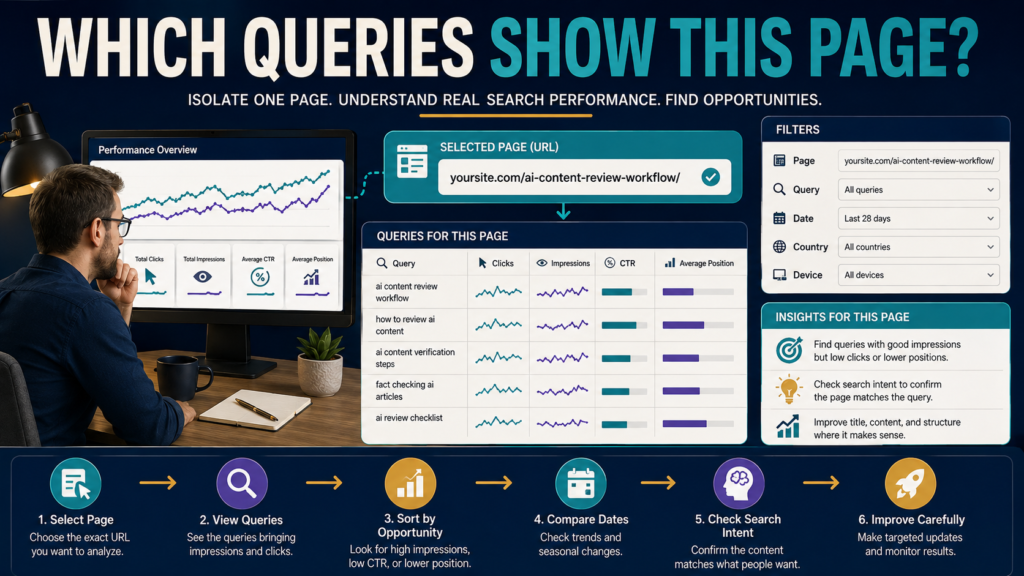
A page can receive traffic from many different Google searches.
If you look only at sitewide Search Console data, those queries can become buried beneath information from every other page.
That makes it difficult to answer:
- What searches are showing this specific article?
- Which queries produce clicks?
- Which topics produce impressions but few clicks?
- Did the page begin appearing for a new search?
- Does Google associate the page with the topic I intended?
Google Search Console’s Performance report allows you to narrow the data to a page and then examine the Queries dimension.
Google’s current Performance report guidance explains how to use page and query dimensions for this kind of analysis.
The important principle is:
Filter the page first, then interpret the query data in the context of that page.
Start With a Specific Question
Do not open Search Console and browse randomly.
Choose one page.
For example:
Then ask:
Which Google searches are associated with this page during the last 28 days?
That is much easier to analyze than:
“What is happening with SEO?”
Open the Search Performance Report
In Search Console, open the Performance report for Google Search.
Your current interface may present the report under Search results or related Performance navigation.
You should see major metrics such as:
- Clicks.
- Impressions.
- Average CTR.
- Average position.
The table can then be grouped by dimensions such as queries and pages.
Method 1: Start With the Pages Tab
A beginner-friendly workflow is:
- Open the Pages tab.
- Locate the page.
- Click the page row.
- Search Console applies the page as a filter.
- Switch to the Queries tab.
Now the query table is restricted to the selected page.
Instead of asking:
“What queries drove the whole website?”
you are asking:
“What queries are associated with this page?”
Method 2: Add a Page Filter
You can also add a page/URL filter manually.
Google’s current advanced-filter documentation supports filters for page URLs using options such as URL containing and custom regular expressions.
For one specific page, keep the filter as precise as practical.
Google’s advanced filtering documentation explains the current filtering options.
After applying the page filter, move to Queries.
Check That the Page Filter Is Still Active
This sounds basic, but it prevents major mistakes.
Before interpreting the query table, look at the active filters.
If the page filter disappeared, you may once again be looking at sitewide query data.
A simple rule:
Do not interpret the table until you confirm the filter bar.
Understand the Four Main Metrics
Clicks
How many times users clicked a result from your site in the selected Search Console data.
For a page filter, you are viewing clicks associated with that page.
Impressions
How often a result from the filtered page was shown under Search Console’s measurement rules.
CTR
Clicks divided by impressions.
CTR helps identify searches that produce visibility but relatively fewer clicks.
Average Position
The average topmost position reported for your site under Search Console’s position methodology.
Google itself recommends focusing on trends in impressions and clicks rather than becoming overly focused on average position alone.
Sort by Clicks First
Your highest-click queries show searches already producing traffic.
Ask:
- Does the query match the page?
- Is the visitor intent appropriate?
- Does the page answer that search well?
- Are several queries variations of the same problem?
This helps reveal how Google and searchers are interacting with the article.
Then Sort by Impressions
High-impression queries can reveal visibility opportunities.
Suppose a page receives:
- Many impressions.
- Few clicks.
- Reasonable relevance to the article.
That may justify reviewing:
- Search intent.
- Title.
- Description.
- Content clarity.
- Whether the page actually answers the query.
Do not automatically rewrite the title merely because CTR appears low.
Different searches naturally produce different click behavior.
Look for Query Families
One article may appear for:
- “how to create an email welcome sequence”
- “welcome email sequence”
- “beginner welcome emails”
- “how many welcome emails should I send”
These are separate queries but may represent one topic family.
Grouping them mentally helps you understand the page’s search footprint.
If you need more advanced grouping across multiple similar queries, Search Console also supports regex filtering.
Do Not Assume the Query Table Contains Every Search
This is critical.
Google omits some anonymized queries to protect user privacy.
Search Console also applies data limits and truncation in parts of its reporting.
Google specifically warns that filtering by query or URL can affect totals because anonymized queries and truncated data may not appear in the table.
Therefore:
Visible query rows should not be treated as a complete list of every search that produced an impression or click.
This is a diagnostic report, not a perfect keyword ledger.
Do Not Add Up the Table and Panic
Because of those reporting limitations, manually adding every visible query may not equal the total shown elsewhere.
That does not automatically mean:
- Tracking is broken.
- Google lost clicks.
- Your page is misconfigured.
Understand the reporting rules first.
Remember Canonical URL Aggregation
Google Search Console often assigns performance data to the canonical URL rather than every duplicate URL separately.
This matters if your site has:
- URL parameters.
- HTTP and HTTPS versions.
- Alternate versions.
- Duplicate paths.
- Canonical tags.
If the URL you expect has little data, investigate whether Search Console associates the search performance with a canonical page.
If you need to investigate one URL’s indexing and canonical information, use the Search Console URL Inspection Tool.
Compare the Page With Its Intended Search Phrase
Suppose you wrote an article for:
“digital product delivery checklist.”
But the page’s strongest queries concern:
“how to email digital downloads.”
That may mean several things:
- Google sees a narrower topic.
- Users are finding one section especially useful.
- Your original keyword target was too broad.
- The page has developed a useful secondary search purpose.
Do not automatically force the original keyword harder.
Study the real search behavior.
Look for Queries That Reveal Content Gaps
A page may receive impressions for a question that it mentions only briefly.
Example:
Your article about email marketing repeatedly appears for:
“how long should a welcome sequence be?”
But the article answers that in only one sentence.
That may justify improving the relevant section.
The improvement should genuinely help the visitor.
Do not add 500 words just because a query appears in Search Console.
Look for Queries That Do Not Belong
Some queries may be poorly aligned with the page.
If the page receives impressions for an unrelated interpretation of a word, the solution may be:
- Clarifying terminology.
- Adjusting the title.
- Improving headings.
- Making the intended subject clearer.
But a few irrelevant impressions are not an emergency.
Look for a pattern.
Compare Date Ranges
A page’s query mix can change.
Compare:
Last 28 Days
with:
Previous 28 Days
or another equivalent period.
Ask:
- Which queries gained clicks?
- Which lost impressions?
- Did a new query appear?
- Is one topic growing?
- Did branded vs non-branded behavior change?
- Was there a seasonal event?
My guide to comparing date ranges in Google Search Console without misreading normal traffic changes explains why comparable periods matter.
Check Device or Country When It Changes the Question
Once the page filter is active, you can add context.
For example:
Page = Article A
Device = Mobile
Now you can see queries associated with that page under the selected device filter.
Or compare countries.
Do this only when there is a reason.
Every extra filter reduces the amount of data you are examining.
For a smaller website, excessive filtering can produce very small samples.
Use Queries to Improve the Page, Not Stuff Keywords
Search Console can reveal the language people use.
That does not mean you should paste every query into the article.
Use the data to understand:
- Questions.
- Vocabulary.
- Search intent.
- Related problems.
- Missing explanations.
Write naturally.
If ten queries are slight variations of the same question, one strong answer may serve all of them.
Reverse the Analysis Too
You can also start with a query and see which pages appear for it.
Google’s current instructions say you can click a query and then open the Pages tab to see which site URLs were shown for that search.
That can help identify situations where several pages compete around the same topic.
Do not label that “keyword cannibalization” automatically.
Multiple pages can legitimately appear for related queries.
Investigate whether the pages:
- Serve different intent.
- Have different purposes.
- Duplicate each other unnecessarily.
Connect Query Data With Content Performance
Search Console tells you what happened before the click.
Your website analytics tells you what happened after.
A query could produce many clicks but poor engagement.
Another may produce fewer clicks but visitors who:
- Read longer.
- Subscribe.
- Purchase.
- Reach important pages.
That is why Search Console and GA4 should be used together rather than treated as interchangeable systems.
Use the Search Console Insights Report for Broader Patterns
If you want a higher-level view of recent content and search trends, the Search Console Insights report can complement this page-level query analysis.
The difference is focus.
Insights helps you notice patterns.
The Performance report lets you investigate the specific page and query dimensions more directly.
A Simple One-Page Search Review
For one article, record:
Page:
Date Range:
Top Query by Clicks:
Top Query by Impressions:
Most Relevant New Query:
High-Impression Low-Click Query:
Potential Content Gap:
Device Difference:
Country Difference:
Change From Previous Period:
Action Needed: Yes / No
Then limit yourself to one or two improvements.
Conclusion
Google Search Console makes it possible to investigate the search queries associated with a specific page instead of mixing that data with your entire website.
Filter to the page.
Switch to Queries.
Review clicks, impressions, CTR, and average position.
Look for real patterns in search intent and query families.
Then remember the limitations: anonymized queries and data truncation mean the visible table is not a complete list of every search.
For your next SEO review, choose one important article and analyze its queries for the last 28 days.
Do not begin by rewriting it.
First ask:
What is Google already showing this page for, and does the content serve those searches well?
That question can lead to much smarter improvements.