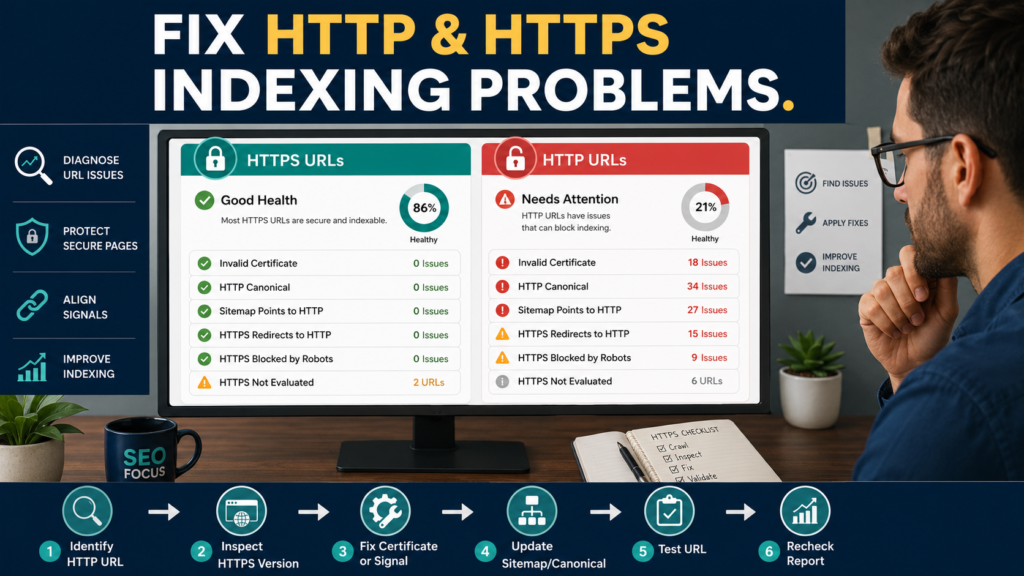
Most modern websites use HTTPS.
That protects data transmitted between the visitor’s browser and the website and prevents the normal connection from operating as unencrypted HTTP.
But website migrations, old links, canonical settings, sitemaps, redirects, and certificate problems can sometimes leave Google seeing both versions.
Google Search Console provides an HTTPS report specifically for investigating this situation.
Google’s current documentation says the report shows how many indexed URLs on a site are HTTP versus HTTPS and helps explain why Google could not index the corresponding HTTPS version of an HTTP URL. Google also notes that the report shows a sample rather than every detected item.
[Google’s HTTPS report documentation is available through Search Console Help.] Google Search Console HTTPS report documentation
What the Report Is Trying to Tell You
The basic question is:
Is Google indexing the secure HTTPS version of my important pages?
Ideally, Google says your report should not contain HTTP URLs that remain indexed where proper HTTPS equivalents exist.
That does not mean every HTTP reference on the internet must disappear overnight.
The report is about Google’s indexed versions.
Where the Report Is Available
Google currently says the HTTPS report is available for:
- Domain properties.
- HTTPS URL-prefix properties.
It is not simply a complete list of every URL Google ever found.
If you cannot find the report, first confirm what type of Search Console property you are using.
Start With the Overall Pattern
Ask:
Mostly HTTPS?
Good.
Investigate remaining HTTP examples.
Large Number of HTTP URLs?
Something broader may be wrong.
Possible causes include:
- Incomplete HTTPS migration.
- Canonical settings.
- Old sitemap.
- Invalid certificate.
- Redirect configuration.
- Server problems.
Look for the pattern before fixing isolated URLs.
Issue: HTTP Marked as Canonical
One possible problem is that your HTTP page still declares itself as canonical.
Example:
http://example.com/page
contains a canonical pointing back to:
http://example.com/page
even though:
exists.
Google’s current HTTPS report documentation says sites with an HTTPS version should declare the HTTPS version as canonical.
What to Check
Inspect:
- Canonical tag.
- WordPress Site Address.
- SEO plugin settings.
- Redirects.
- Internal links.
- Sitemap.
Do not change everything simultaneously.
Identify the source of the wrong HTTP signal.
Issue: HTTPS Has an Invalid Certificate
An HTTPS URL requires a valid SSL/TLS certificate.
Google specifically lists invalid certificates as one reason an HTTPS version may fail evaluation.
If browsers display:
Your connection is not private
that is more than an SEO problem.
It is a visitor trust and security problem.
Contact your hosting provider if you do not manage certificates yourself.
Certificate Problems Can Be Sitewide
Unlike one bad article URL, a certificate problem can affect a large portion of a domain.
Check:
- Certificate expiration.
- Domain coverage.
wwwand non-www.- Subdomains.
- Hosting configuration.
Do not simply request reindexing.
Fix the certificate first.
Issue: Sitemap Points to HTTP
Google’s report can flag situations in which the sitemap points to an HTTP URL that Google indexed as canonical even though you intended to use HTTPS.
Example:
Sitemap:
http://example.com/article
Live canonical:
That sends inconsistent signals.
Update the sitemap-generation system.
Do not manually edit a sitemap generated dynamically by WordPress unless you understand how it is produced.
Check WordPress Settings
If WordPress still believes the website address is HTTP, that may create broader problems.
Review:
WordPress Address
Site Address
SEO plugin canonical behavior
Sitemap output
Internal links
Use appropriate backups before changing important site settings.
Issue: HTTPS Redirects Back to HTTP
This is a serious configuration contradiction.
Visitor requests:
Server sends them to:
http://example.com/page
Google specifically lists this as an HTTPS-report error.
The normal desired direction for a fully migrated site is usually the opposite:
HTTP → HTTPS
not:
HTTPS → HTTP
Check Redirect Chains
You may have:
HTTP → HTTPS → HTTP
or:
HTTP → HTTPS → different HTTPS
Unnecessary chains create complexity.
Use browser/dev tools or a reputable redirect-testing method to understand the actual chain before editing rules.
Issue: HTTPS URL Blocked by Robots.txt
Google’s current HTTPS documentation includes cases in which the HTTPS version exists but is blocked by robots.txt.
Ask:
Is that block intentional?
If an important HTTPS page should be crawled and indexed, an accidental block must be corrected.
Robots Blocking Can Hide the Correct Version
Imagine:
HTTP version is crawlable.
HTTPS version is blocked.
You are asking Google to prefer a page it cannot properly crawl.
Fix the contradiction.
Issue: HTTPS Not Evaluated
This status can occur for several reasons.
Google currently lists possibilities including:
- No equivalent HTTPS page.
- HTTPS page returns a 4xx or 5xx error.
- Google selected HTTP as canonical.
- Too many HTTPS errors prevented further processing.
- Sitewide HTTPS problem.
- URL has not yet been crawled/evaluated.
Do not treat all “HTTPS not evaluated” URLs as one identical problem.
Fix Other Errors First
Google’s documentation specifically advises fixing more concrete HTTPS errors first when many URLs also show as not evaluated. Resolving those underlying problems may allow evaluation to continue.
This is a common troubleshooting principle:
Fix known causes before investigating vague symptoms.
Use URL Inspection for an Example
Choose an affected URL.
Then use Search Console URL Inspection.
Check:
- Current indexed version.
- Live page.
- Crawl allowed.
- Canonical.
- Fetch status.
LeeOneMedia has a complete workflow for this:
How to Use the Search Console URL Inspection Tool to Troubleshoot One Page
Compare User-Declared and Google-Selected Canonical
If you want HTTPS but Google keeps choosing HTTP, look for conflicting signals.
Possible signals:
- Canonical tag.
- Redirect.
- Sitemap.
- Internal links.
- External links.
- Server behavior.
You do not directly “set Google’s canonical.”
You improve the consistency of your own signals.
Check the Page Indexing Report
The HTTPS report focuses on secure URL versions.
The Page Indexing report answers broader indexing questions.
If the HTTPS page is also:
- Crawled — Currently Not Indexed.
- Duplicate.
- Redirect.
- Noindex.
you may have another issue beyond HTTPS.
Use:
How to Use the Search Console Page Indexing Report Without Trying to Index Every URL
Check Crawl Stats if Site Availability Looks Unstable
If many HTTPS URLs return:
- Server errors.
- Availability errors.
- Slow responses.
check Crawl Stats.
Your guide is here:
How to Use the Search Console Crawl Stats Report Without Obsessing Over Crawl Budget
This may reveal broader server behavior.
Do Not Fix HTTPS Problems With Search Console Alone
Search Console reports the condition.
It does not repair:
- SSL certificate.
- WordPress configuration.
- Redirect rules.
- Server.
- Sitemap generator.
- Canonical tags.
The actual fix usually occurs on the website or hosting environment.
Prioritize High-Impact Problems
Suppose you have:
Problem A
One old archive URL still indexed as HTTP.
Problem B
Your entire site’s HTTPS certificate is invalid.
Fix Problem B first.
Look for:
- Sitewide errors.
- Large URL groups.
- Important pages.
Do not spend equal time on every example.
Test the Public HTTPS Page
Open the HTTPS page in a normal browser.
Check:
- Loads without warning.
- Correct content.
- Correct domain.
- No unexpected redirect.
- Correct canonical.
- Internal links remain HTTPS.
If the browser itself cannot use the page correctly, solve that before worrying about Search Console colors.
Internal Links Should Use HTTPS
Once a site is fully migrated, your own links should normally point directly to the secure version.
Avoid:
Internal HTTP link → redirect → HTTPS page
when you control the source link.
Update the internal link directly.
Update Important External Systems Too
Check:
- Email templates.
- Social profiles.
- Advertising.
- Affiliate materials.
- PDF documents.
- Old navigation.
You may not be able to change every external backlink.
Focus first on the systems you control.
Do Not Expect Search Console to Update Immediately
After fixing:
- Certificate.
- Redirect.
- Sitemap.
- Canonical.
Google still needs to recrawl and process the URLs.
The report may lag behind your live configuration.
Confirm the live fix first.
Then monitor.
Create an HTTPS Troubleshooting Log
Record:
Date
Issue Type
Affected URLs
Example URL
Website Fix
Live Test
Search Console Status
Review Date
This helps if the problem takes time to clear.
A Simple Troubleshooting Sequence
Use this order:
- Confirm HTTPS page exists.
- Confirm certificate is valid.
- Confirm HTTPS does not redirect to HTTP.
- Confirm HTTPS is crawlable.
- Confirm canonical prefers HTTPS.
- Confirm sitemap uses HTTPS.
- Confirm important internal links use HTTPS.
- Inspect representative URL.
- Recheck Search Console after recrawling.
Do not start by requesting indexing repeatedly.
HTTPS Is Primarily a Security Requirement
Google strongly recommends HTTPS for security and privacy.
Do not frame migration as:
Install SSL and rankings will instantly rise.
A secure, correctly configured site is the real goal.
Conclusion
The Search Console HTTPS report is useful because it helps answer a very specific technical question:
Why is Google still seeing or indexing HTTP URLs when I expect HTTPS?
Review the affected examples.
Check certificates.
Check canonicals.
Check redirects.
Check robots.txt.
Check sitemaps.
Use URL Inspection on representative pages.
Then fix the problem on the website itself.
The goal is not to make the Search Console report look perfect for its own sake.
The goal is to give users and Google one consistent, working, secure HTTPS version of each important page.