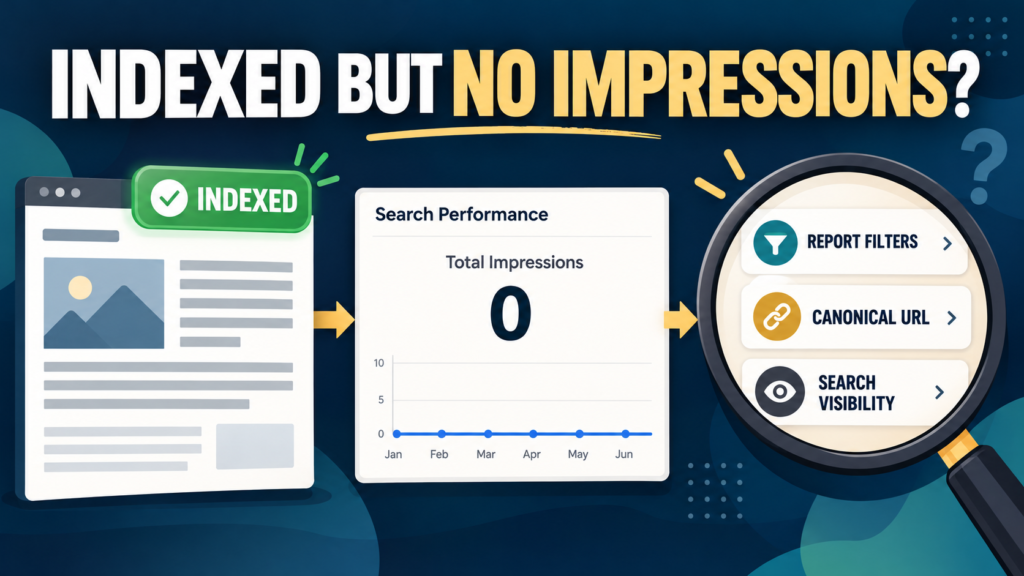
Your website page is published. Google Search Console says the URL is indexed. Yet when you open the Performance report, you cannot find any impressions for that page.
This can be confusing because indexing sounds like the final step before a page starts receiving attention from Google Search.
But an indexed page with no impressions in Search Console does not necessarily mean something is broken.
Google may have indexed the page without displaying it for searches during the period you examined. Your report settings may also be hiding relevant data, or Google may be attributing performance to a different canonical URL.
The important distinction is that indexing and search visibility are not the same thing.
This guide explains how to determine whether you are dealing with a reporting issue, a technical issue, or a page that has not yet earned meaningful exposure in search results.
1. Understand What Indexing Actually Means
Google Search involves several different processes.
First, Google discovers URLs. It may find a page through links, an XML sitemap, or another discovery method.
Next, Google attempts to crawl the page and process its content.
If the page qualifies, Google may add it to its index.
Finally, when someone performs a search, Google selects results it considers relevant to that particular query.
These stages are connected, but completing one does not guarantee completion of the next.
An indexed page is eligible to appear in search results, subject to Google’s serving and ranking systems. That does not mean Google must display it for a particular keyword.
For example, imagine publishing an article explaining how a small business owner can organize a monthly content audit.
Google might index the article successfully.
However, if the searches people perform are better served by other pages, your article might receive little or no exposure initially.
Google’s official How Search Works documentation explains the distinction between crawling, indexing, and serving search results.
The first diagnostic rule: Do not treat successful indexing as proof that a page should already have impressions.
2. Know What a Search Impression Measures
Before investigating zero impressions, make sure you understand what the metric represents.
In Google Search Console, an impression generally reflects an instance in which a link to your page appears in Google Search under the applicable counting rules.
An impression is not the same as a click.
Someone can see your page in search results without visiting it.
Consider these three situations:
| Situation | What it indicates |
|---|---|
| Zero impressions and zero clicks | No impressions are recorded for the selected report scope |
| Impressions but zero clicks | The page appeared in search results without recorded clicks |
| Impressions and clicks | The page received both search exposure and visits from those results |
This distinction helps you identify the problem you actually need to solve.
If a page already receives impressions but no clicks, you may need to investigate whether its title, snippet, or content matches search intent.
If the page records no impressions, begin with report accuracy, indexing details, and relevance.
Do not start rewriting titles merely because the page has not received clicks.
Google’s Search performance guidance explains how impressions and clicks are measured and reported.
3. Confirm That Search Console Is Showing the Correct Date Range
A surprisingly common cause of missing performance data is examining the wrong period.
Imagine that you published a page recently but are reviewing a report that covers a period before Google indexed it.
Naturally, the report cannot show search exposure that did not occur during that period.
To investigate:
- Open Google Search Console.
- Select the appropriate website property.
- Open the Performance report for Search results.
- Examine the selected date range.
- Choose a range that includes the period after the page became available.
- Check whether the newest dates have complete reporting data.
Google Search Console data is not necessarily available immediately after an event occurs.
Some recent data may be preliminary or incomplete.
Therefore, avoid interpreting the newest available reporting date as a complete representation of your page’s performance.
Compare a Longer Period
If you have been examining only the past seven days, temporarily use a longer period.
A broader range may reveal that the page had impressions previously but has not received any recently.
That is a different problem from a page that has never recorded impressions.
You are trying to answer:
Has the page never received recorded search exposure, or has its exposure recently disappeared?
The answer determines what to investigate next.
4. Remove Filters That May Be Hiding Your Page
Performance reports can be filtered by several dimensions, including search type, date, country, device, and page.
Filters are useful when you want to investigate a specific audience.
They can also create confusion when you forget they are active.
For example, suppose you select mobile traffic from one country.
A page that received impressions primarily on desktop devices in another country might appear to have no data under those settings.
Similarly, a query filter may exclude searches that produced impressions for your page.
Reset the Report
Start with a clean view:
- Open the Search results Performance report.
- Remove unnecessary query and page filters.
- Check the selected search type.
- Remove country and device restrictions.
- Select an appropriate date range.
- Open the Pages tab.
- Look for the page again.
If impressions appear after removing a filter, you have discovered a reporting-scope problem rather than evidence of an indexing failure.
Be Careful With Query Reports
The Queries tab does not necessarily display every search that contributed to your totals.
Google omits some queries for privacy and reporting reasons.
As its Performance report documentation explains, anonymized queries and reporting limitations can create differences between displayed query rows and totals.
That means missing query rows alone do not prove that your page had no impressions.
Investigate page-level reporting before drawing a conclusion from the query list.
5. Check Whether Google Selected a Different Canonical URL
A canonical URL is the version Google treats as the main representative of a page when multiple similar or duplicate URLs exist.
This matters because Search Console generally attributes performance data to the Google-selected canonical URL.
Imagine your website has two accessible addresses:
and
Although both addresses may display similar content, Google could select one canonical URL.
If you examine the alternate address, you might mistakenly believe that the page has no search performance.
How to Check the Canonical
Open Google’s URL Inspection tool and inspect the exact URL you are investigating.
Review the indexing information, particularly the Google-selected canonical URL.
Compare it with the address you entered.
If Google selected another canonical, inspect that URL’s performance.
Google’s Performance report documentation explains how canonical URLs affect data attribution.
When This Is the Real Problem
This diagnostic step is especially important after:
- Changing a WordPress permalink.
- Moving content to a different URL.
- Consolidating similar pages.
- Implementing redirects.
- Changing canonical settings in an SEO plugin.
Do not automatically change canonical settings because they differ from what you expected.
First determine whether Google selected an appropriate primary version.
A correct canonical does not need to be changed simply to make a particular report row show impressions.
6. Use URL Inspection to Verify the Page’s Indexing Details
Once you have checked reporting filters and canonical attribution, investigate the URL itself.
Open Search Console’s URL Inspection tool.
Enter the exact page address and review the available information.
Look for the indexed status and relevant details about crawling, indexing, and canonical selection.
Depending on the situation, you may also use the live URL test to examine the currently accessible page.
Indexed Version Versus Live Version
These are not necessarily identical.
The indexed information reflects what Google knows about the URL from its indexing systems.
The live test checks aspects of the page’s current accessibility.
For example, your page may have been indexed successfully before a website configuration change.
A recent change could now affect access, even though the indexed report has not yet reflected it.
The reverse can also occur: you may have corrected a technical issue, but Google has not yet processed the updated version.
The live test helps identify some current technical problems. It does not guarantee ranking or impressions.
If you find a real accessibility or indexing problem, correct it and allow Google to process the change.
If the page is accessible and indexed without an obvious technical concern, proceed to search relevance.
7. Determine Whether Your Content Matches Real Search Intent
This is often the most important part of the diagnosis.
An indexed article may receive no impressions because it does not compete effectively for the searches relevant to its subject.
Search intent means what someone is trying to accomplish when performing a search.
Consider a page titled:
“Thoughts About Growing a Website”
The subject is broad, but the reader’s intended outcome is unclear.
Now consider:
“Why Your WordPress Blog Posts Are Not Appearing in Google Search”
The second title addresses a recognizable problem.
It suggests a specific reader, a clear issue, and a practical outcome.
That does not guarantee better rankings. It does create a clearer match between the article and a potential searcher’s needs.
Examine the Article’s Main Question
Ask yourself:
- What exact problem does this page solve?
- Who has that problem?
- What would someone type into Google to find the answer?
- Does the page deliver the answer promised by its title?
- Does it explain the difficult parts of the problem?
- Is there a reason someone would find this page more useful than a generic overview?
You should be able to describe the article’s purpose in one straightforward sentence.
If you cannot, the page may be too broad or unfocused.
Compare Relevant Search Results
Search for a few natural phrases associated with the problem.
Examine what types of pages appear.
Are the results primarily tutorials, product pages, comparisons, definitions, or troubleshooting guides?
Your objective is not to copy competing pages.
It is to understand whether your content format answers the same kind of question that searchers are asking.
If Google primarily displays step-by-step troubleshooting guides, but your page offers only a brief conceptual introduction, the format may not adequately serve that intent.
8. Check Whether Another Page on Your Website Addresses the Same Problem
Sometimes multiple pages on a website target substantially the same reader question.
This can happen gradually.
Perhaps you published one article about tracking blog traffic and another about understanding website visitor reports.
There is nothing inherently wrong with related content.
The issue arises when several pages provide nearly identical answers without a meaningful difference in purpose.
Review the page you are investigating alongside similar articles on your website.
Compare their intended readers, questions, explanations, and recommended actions.
Ask whether each page solves a distinct problem.
If two articles provide substantially the same answer, consider whether one should be updated, differentiated, or consolidated.
However, do not delete or merge content automatically.
Related articles can work well together when each answers a different question.
The goal is clearer usefulness, not fewer pages for their own sake.
9. Evaluate Whether the Page Provides Enough Useful Information
A page can be indexed while offering too little practical value for the reader.
For example, imagine an article about diagnosing a sudden loss of blog traffic.
It says to check Google Search Console, improve your SEO, and create better content.
Those suggestions are broadly relevant, but they do not help someone determine why the traffic disappeared.
A more useful article would explain how to distinguish indexing problems from ranking changes, tracking problems, and seasonal search demand.
That kind of diagnostic guidance helps readers make decisions.
Review Your Page Objectively
Look for opportunities to improve:
- The clarity of the opening explanation.
- Instructions readers can actually follow.
- Examples showing how to recognize the problem.
- Important distinctions that prevent mistakes.
- Relevant supporting evidence or documentation.
- A conclusion that tells readers what to do next.
Avoid adding paragraphs merely to make an article longer.
A focused page that solves a narrow problem may be more useful than a long page filled with repeated general advice.
Improve the substance of the answer instead of chasing an arbitrary word count.
10. Check How Search Engines Discover and Understand the Page
Even when a page is indexed, basic website organization still matters.
A useful page should be accessible through the website’s navigation or through relevant links from other pages.
If an article is disconnected from the rest of the site, visitors and search engines may have fewer pathways to discover related information.
Review whether the page:
- Has a clear, descriptive title.
- Uses headings that explain the subject.
- Contains readable text rather than relying entirely on images.
- Is reachable through relevant website links.
- Avoids unnecessary duplicate versions.
- Works properly on mobile devices.
- Provides an accurate and complete answer.
Internal links can help readers move naturally between related topics.
For example, an article about interpreting Search Console reports might link to a separate explanation of search impressions.
Those links should help readers rather than exist solely to influence search visibility.
Do not add unrelated links or repeatedly force the same keyword into anchor text.
11. Know When to Wait Instead of Making Changes
Not every indexed page with zero impressions needs immediate revision.
Suppose you published a carefully researched tutorial yesterday.
Google has indexed it, but the Performance report has not yet recorded impressions.
That alone is not enough evidence to conclude the article has failed.
You need an observation period appropriate to the subject, website, and available data.
A newly established website may have limited search visibility.
A highly specialized topic might attract relatively few searches.
A page addressing a common problem may face substantial competition from other helpful resources.
There is no universal number of days after indexing that guarantees impressions.
When to Investigate More Deeply
A closer review becomes worthwhile when:
- The page has remained indexed for a meaningful period.
- Reporting filters and canonical attribution have been checked.
- Comparable pages on your website receive impressions.
- The subject appears to have relevant search demand.
- The page contains enough substantive information to evaluate fairly.
Under those circumstances, examine the quality and relevance of the answer before making changes.
Do not submit repeated indexing requests for a page that is already indexed simply because it has no impressions.
An indexing request is not a request for better rankings.
12. Use a Diagnostic Decision Table
The following table helps you identify the most appropriate next step.
| What you discover | Recommended action |
|---|---|
| Wrong date range | Select a period covering the page’s indexed history |
| Country, device, or query filter active | Remove the filter and check again |
| Different Google-selected canonical | Check performance for that canonical |
| Indexed URL has a new technical problem | Fix the verified accessibility issue |
| Content poorly matches the searcher’s question | Improve search-intent alignment |
| Content offers a shallow answer | Add genuinely useful explanations and guidance |
| Several articles solve essentially the same problem | Review differentiation and possible consolidation |
| Recently indexed, no technical issue found | Allow time for data and search exposure to develop |
The objective is to select the correction that matches the evidence.
Do not change six SEO settings simultaneously.
If you make multiple unrelated changes, determining which action helped becomes much harder.
13. Track Whether Your Corrections Help
After making a meaningful improvement, keep a simple record.
Record the URL, the problem you observed, the change you made, and the date of the change.
Then review the same page in Search Console over a comparable period.
Look for the appearance of impressions, changes in relevant queries where data is available, and whether clicks begin to occur.
Remember that external conditions also influence search performance. A later increase does not prove that one particular change caused it.
Evaluate the results cautiously.
An important improvement may be making the content substantially more useful, even when search exposure does not increase immediately.
Avoid repeatedly rewriting a page after only a day or two of observation without evidence of a new problem.
Give your changes an appropriate opportunity to be discovered and evaluated.
Useful Summary
An indexed page with no Google Search impressions is not automatically broken.
Start by confirming that Search Console is displaying the correct reporting period and filters. Next, check whether Google’s canonical selection affects where the performance data appears.
Use URL Inspection to investigate genuine technical concerns.
If the page is indexed and accessible, focus on whether its content answers a clear search question thoroughly and usefully.
Indexing makes a page eligible for search visibility. It does not guarantee impressions, clicks, or rankings.
The most effective troubleshooting approach is to determine which stage actually needs attention rather than changing SEO settings without a diagnosis.
Your Next Action
Open Google Search Console, select one indexed page showing zero impressions, and check its date range, active filters, and Google-selected canonical URL.
Write down what you discover before changing the page.
If the reporting setup is correct, your next investigation should focus on the page’s search intent and usefulness.